Folks
For anyone contemplating the same journey as me, I thought I’d report back as to progress…
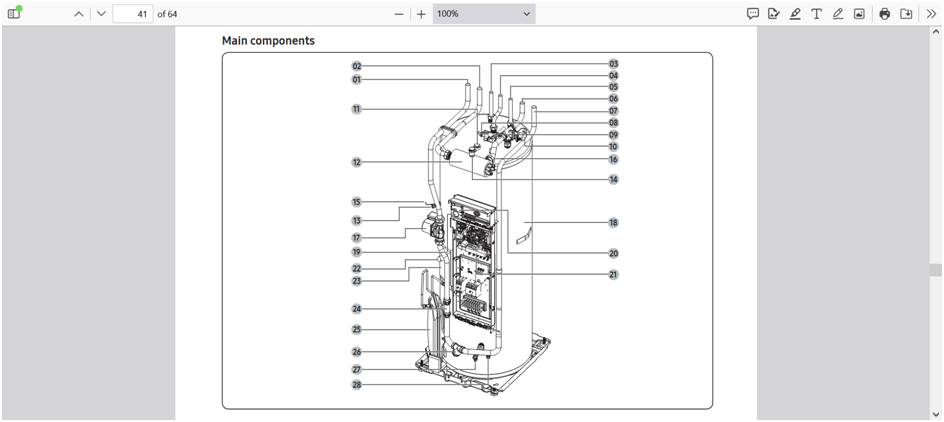
I eventually mounted the MIM-B19-n inside my heat pump, where there was a white plastic ‘slot’ into which it directly fitted (no need for the supplied black holder) taking the power from R1/R2 on the main board - with the supplied cable, and comms also with the supplied cable - back to the snap-in connector on the main board. one of the cables only just reached.
You need to decide what ‘address’ you set on the MIM-B19; you do this with some tiny dip switches, and a rotary selector - both on the board itself. This address is used in your subsequent code (YAML within Home Assistant, in my case) to dictate from and to where the MODBUS messages are transmitted. I think the factory default was either 0 or 1 on the rotary, and all dip switches set to ‘off.’ I plumped for ‘4’ which I set on the rotary dial - particularly as I didn’t want to mess around with the dip switches. Just remember that you need to know the address which has been set, as you’ll need it later on, and you don’t want to be taking the heat pump apart unnecessarily. You also want to set this address before installing the board, as it’s fiddly enough with the MIM-B19 accessible, let alone installed. An example of the modbus wiring guide is here.Note the requirement to ground the comms cable at one end only.
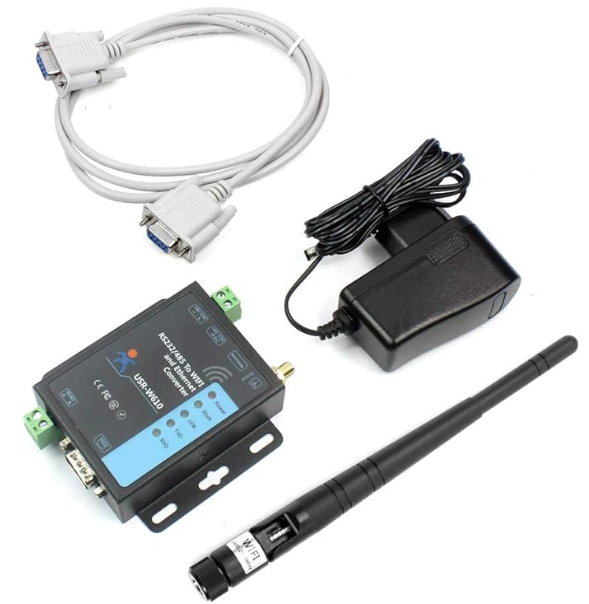
I was determined to use a wireless solution, eventually opting for one of these W610 boxes, which not only acts as the wireless bridge to your network, but also translates the modbus / RS485 into something which can be transmitted over TCP - and therefore, your network, and on to Home Assistant:
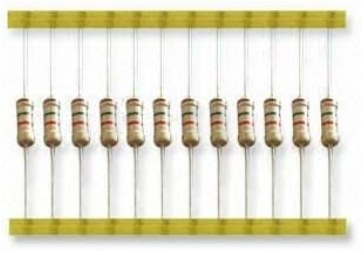
The other 2 things you need to get are a length of cable - to run from your MIM-B19 in the HP, to wherever you decide to locate this ‘converter,’ and a couple of 120 Ohm resistors. I didn’t want to be messing about with electronic components to begin with, but to be honest they’re easy to come by, and cheap-as-chips (as we say in England.) They’re also easy to fit. They effectively help to reduce noise generated in the cable, which can ruin the modbus messages, so it’s quite important to do all you can to suppress unwanted garbage from giving you an issue. I have read that the resistors aren’t necessary for short cable lengths, but as I was running my cable through about 2m of ducting which also carries the mains for the HP (which can draw upward of 7-8 kW when doing a DHW cycle) I decided to put a resistor at each end.
I got a strip of 100 for £3.79 at Amazon here, so I’ve got a few going spare…!
The cable needs to be shielded, and a ‘twisted pair’ to also help reduce interference. Most local places don’t seem to stock this ‘niche’ stuff, so expect to have to order it. I used this one, which seemed to be good value at 48p /m. Think carefully about siting your W610 - you don’t want to be suffering from poor Wifi signal - and only then decide on cable length.It also needs to be close to a 3-pin UK mains socket.
I did what I thought would be the easy bit first - firing up the W610, then logging-on to it’s own wifi network (SSID ‘USR-W610-xxxx’ where xxxx is the last 4 digits of the unit’s MAC address published on the label underneath the unit). Once in, navigate to IP address 10.10.100.254 with a web browser, which will bring up the unit’s web interface. Log in using the highly secure ‘admin’ for both username & password. I won’t go through all of the settings, but in ‘Quick Configure’ 1F set STA mode, then do a search for your wifi SSID, and enter the password - to enable the unit to connect to your network. You’ll need to continue to change config settings once it’s on your network, so be sure to know what IP address your router gives it; I used the ‘STA Interface Setting’ section, and used the ‘WAN Connection Type’ area to set a static IP address - which was outside the DHCP range of my router - in order to avoid IP conflicts, and to always know which IP address to use in order to log back in and make changes. In the ‘ Wifi-Uart Setting’ page set baudrate to 9600, databits 8, parity even, ‘stop’ [bits] 1, ‘flow control’ and ‘baudrate adaptive’ negative, and RS485 mode ‘enable.’ Further down the same page, note (or set your own) port number as you’ll need this to configure the MODBUS in HA. I think mine defaulted to 8899, but 502 seems to be standard. Remember to ‘Apply’ any changes using the button at the bottom of each page, then restart the module from the ‘Device management’ section when all the changes have been made. User manual (V2.0) is here.
MODBUS is built-in to HA, but won’t be accessible until you’ve actually made reference to it using some YAML (I think). The main thing is - don’t go searching for it as an integration - you already have it.
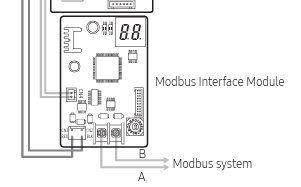
The comms cable you buy, connects between the two terminals on the MIM-B19, and the W-610.
The MIM-B19 left-hand one connects to the W-610 ‘A’ terminal…
The MIM-B19 manual can be found here.
Once it’s all connected & powered-up, you should be able to use some yaml to make a start on working with it:
I’m not putting everything here, as it’s just a guide, but as a starter-for-ten (good ol’ Bamber!!) I’ve got this in my ‘Configurations.yaml’ folder…
modbus:

* name: w610

  type: tcp

  host: 192.168.1.3

  port: 8899

  timeout: 5          # allow up to 5 seconds for a reply

  retries: 5

  sensors:

  * name: samsung_DHW_temperature

    slave: 4

    address: 75

    input_type: holding

    data_type: int16

    scan_interval: 30
This successfully gave me the state of ‘samsung_DHW_temperature’ sensor, which can be checked in ‘States’ under ‘Developer Tools.’ It’s increased by a factor of 10, so a State of 470, is an actual temp of 47 C.Note ‘Slave’ is ‘4’ - my chosen address set on the MIM-B19 address selectors, before installing in the HP. Also ‘host: 192.168.1.3’ (in this example) is the IP address allocated to your W-610, or the static IP if you select one.
Once you have proof of concept, you can play with it to your heart’s content; there seems to be quite a variation in register numbers & addresses etc, so you can expect quite a bit of legwork, going forward, but there’s a lot of help from some top people out there, so pretty much anything’s possible.
At least, for those folk who want to do something like this, but don’t know where to start, you at least have access to one wifi set-up which has been proven to work.
I now have access to many of the available registers, and crucially, I can now confidentally control DHW cycles from Date/time helpers in HA, rather than having to use the pesky Samsung remote controller schedules to do so.
I hope this helps at least a few Folk starting their journey.
Let me know if it’s been helpful.
Good luck!@SarahH @toadhall
 !
! …
…
