OK so let’s go through it step by step; getting from having data being uploaded to emoncms.org to it appearing on heatpumpmonitor.org. My starting point was having data being delivered to emoncms.org by Gemini’s python code from here.
I’d set up my emoncms account and found the read & write API key under ‘My account’ and put it into the python code. As a result, in emoncms – setup – inputs I saw the list of parameters being delivered by main.py. They were already grouped under the node ‘vaillant’ but I didn’t need to know about that (Gemini had set that up in main.py).
I next need to create feeds for each parameter, so historical data can be stored. To do that I need to click the spanner icon at the right of each parameter row, then beneath the ‘add process’ header leave everything as it is except change the ‘10s’ in the last box to 30s to match the upload interval of main.py. Then I press ‘add’ at the end of the row, then ‘changed, press to save’ at bottom right, then ‘close’.
Additionally I need to add second feeds for elec_power and heat_output. This time, I need to change the first dropdown under the ‘add process’ header to ‘power to kWh’, add _kWh to the end of the feed name (third box after ‘Feed’), change the 10s to 30s again, and press ‘add’ then ‘changed, press to save’. (The are ‘input processors’ but I don’t need to know that.)
At that point I should go to ‘My account’ in emoncms.org and scroll down to ‘Emoncms.org billing’, and follow the instructions to buy the appropriate number of credits from the OEM online store.
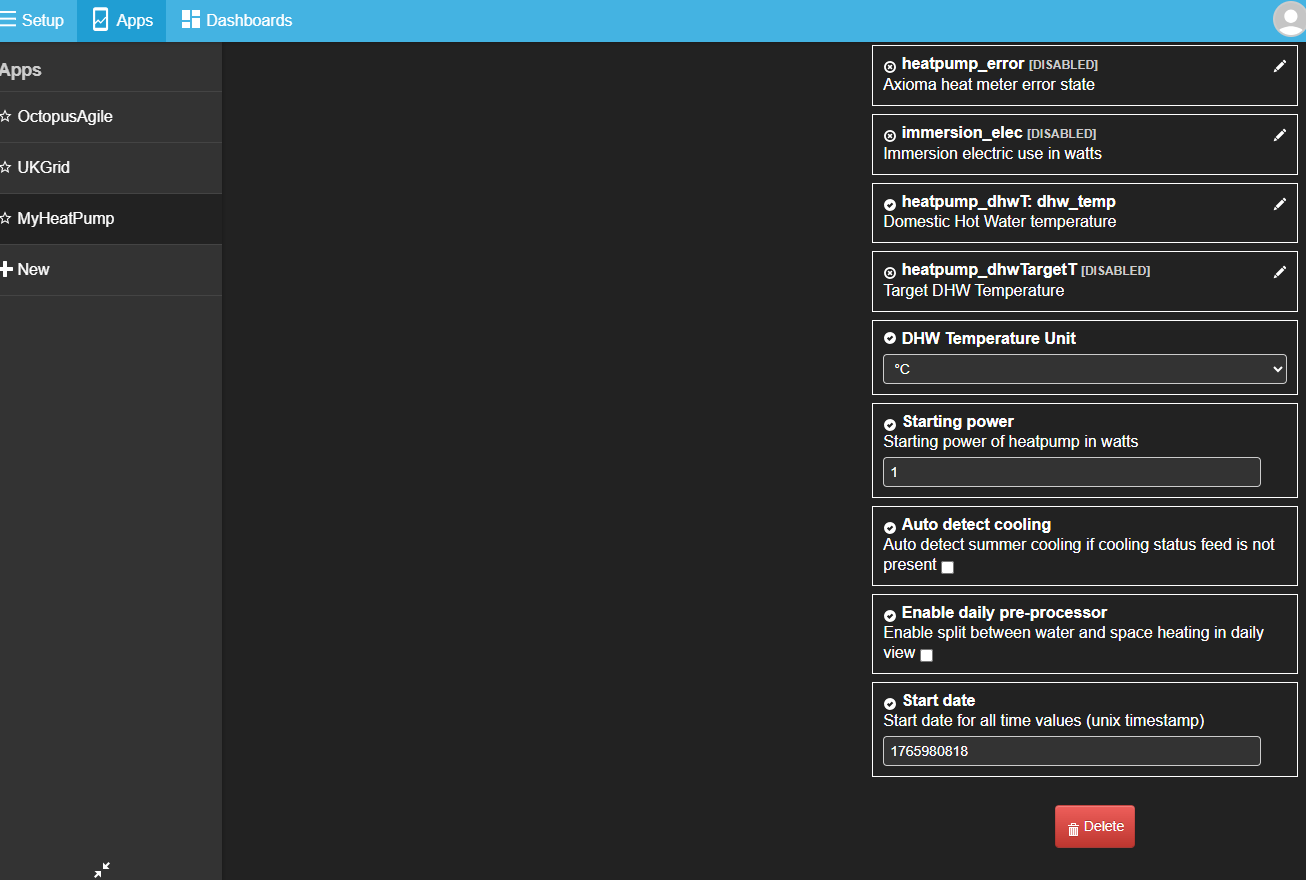
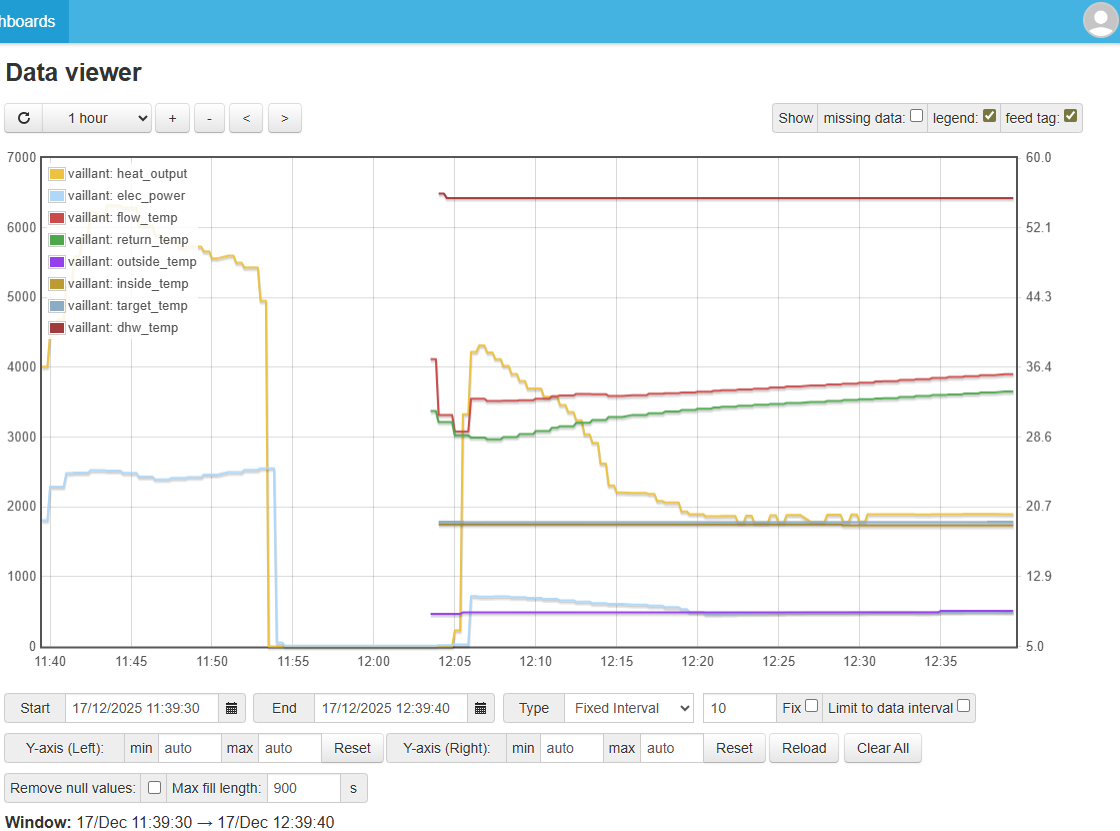
I now need to add an ‘app’, the MyHeatpump app. I go to Apps, +New, select MyHeatpump. On the right I need to select the dropdown in each little box and choose the appropriate feed for the title of the box e.g. for ‘heatpump_elec’ and choose ‘elec_power’. After filling in as many as I can, a ‘launch app’ button should have appeared beneath the column of boxes. Click that, and I should – after a minute or two – see a lovely emoncms chart of the parameters my heat pump is reporting.
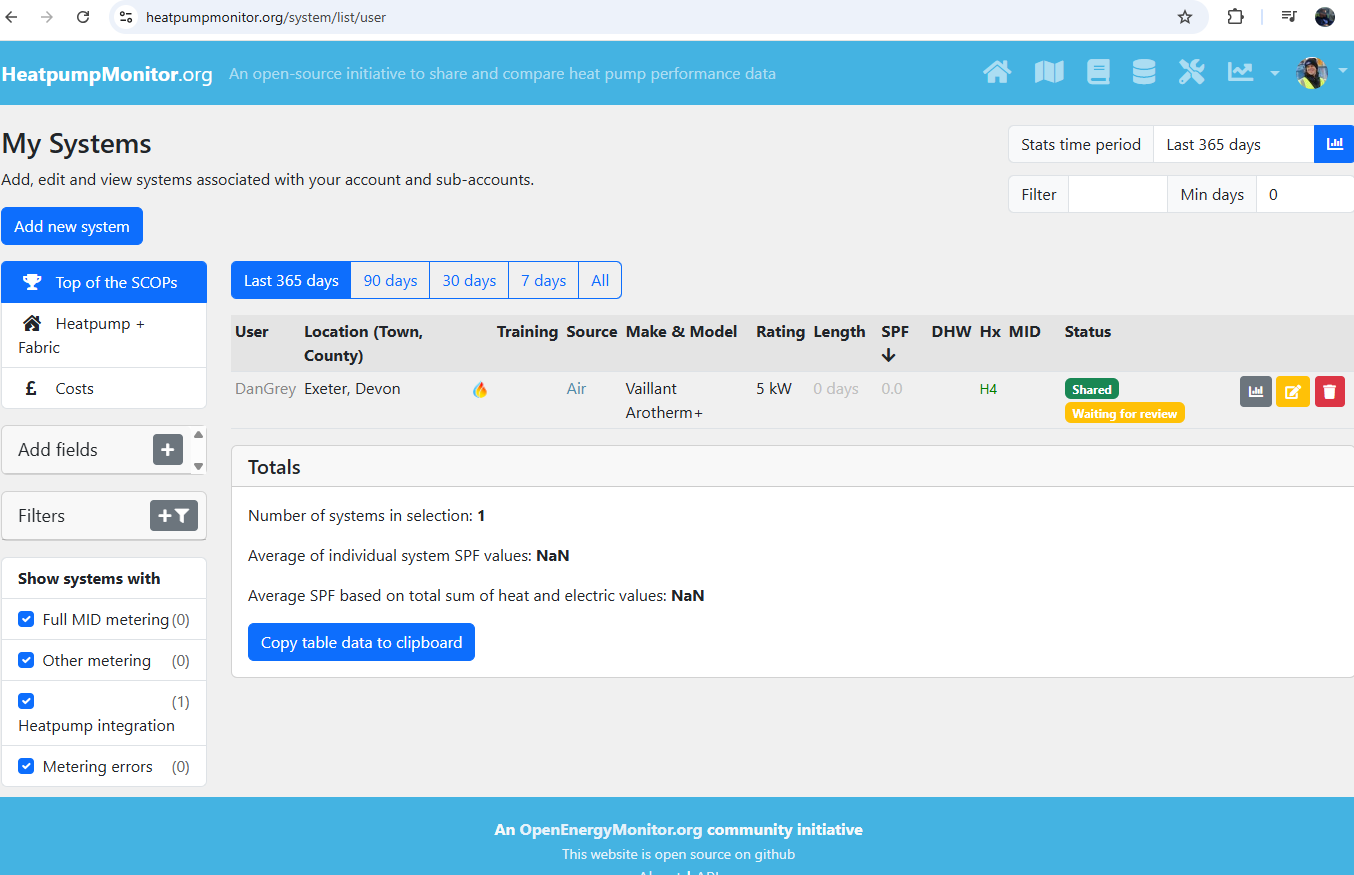
Next, I go the heatpumpmonitor.org. I log in with my emoncms.org username and password, click my profile pic, then My systems. I click the ‘Add new system’ button and under the ‘Select Emoncms.org dashboard’ header I choose ‘[my username]:[the name of the app I just made]’. I go down the page filling in all the details I can, including the read-only API key from emoncms. If the page won’t let me save I better just add some best guesses into the fields it’s not letting me leave blank. Then, when I press save, I should have a heat pump system system listed as a row on the screen, with the label ‘awaiting review’. If I click the graph icon I can see the emoncms chart and stats on heatpumpmonitor.org but no-one else can until the nice Mr. Hudson approves my system  .
.
And with that, all should be working!

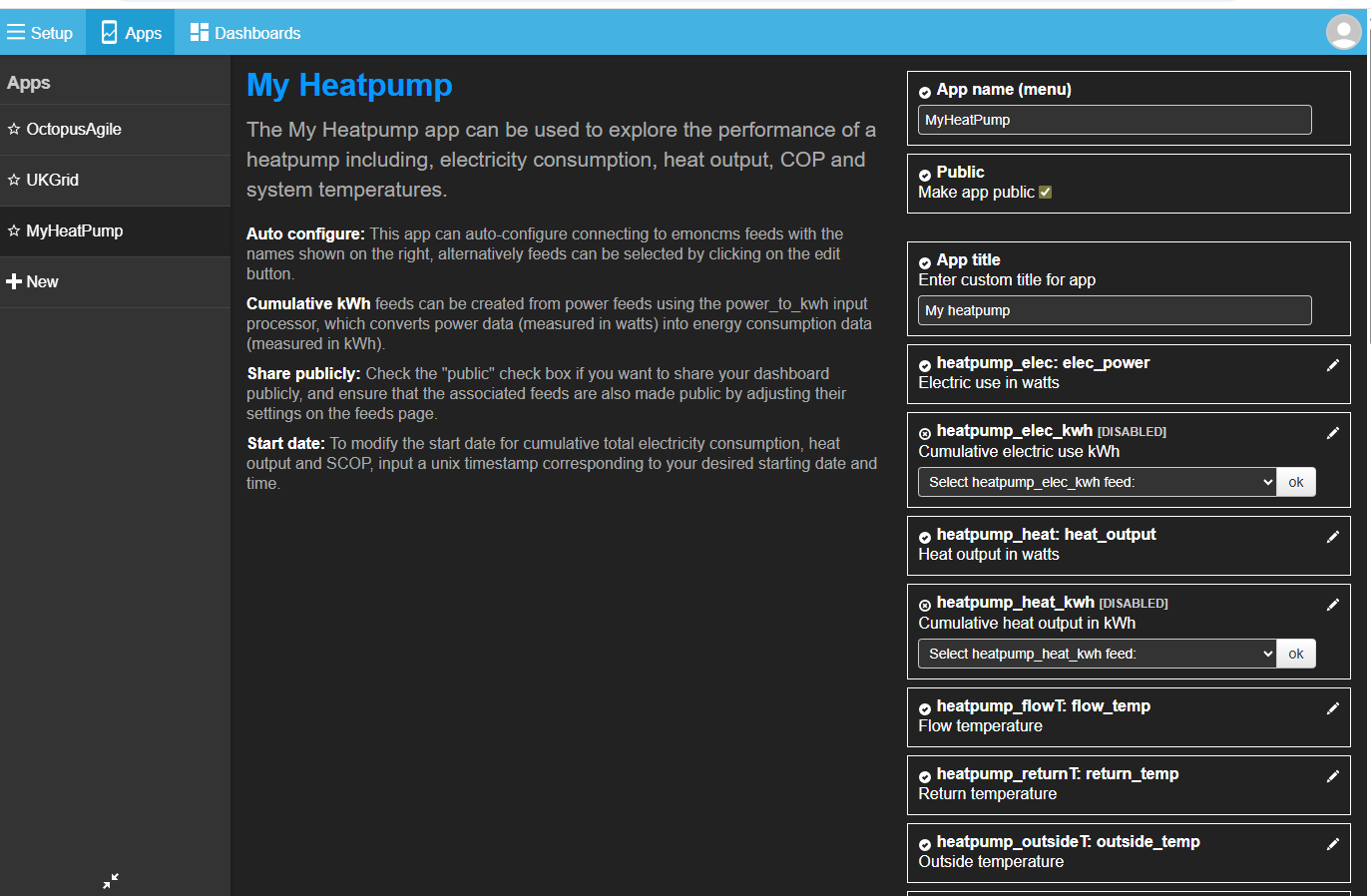
 . I mention that as the other two apps have a spanner icon top right which opens a config screen with the same layout, and at the bottom of the screen is a “launch app” button. Not so in Myheatpump.